
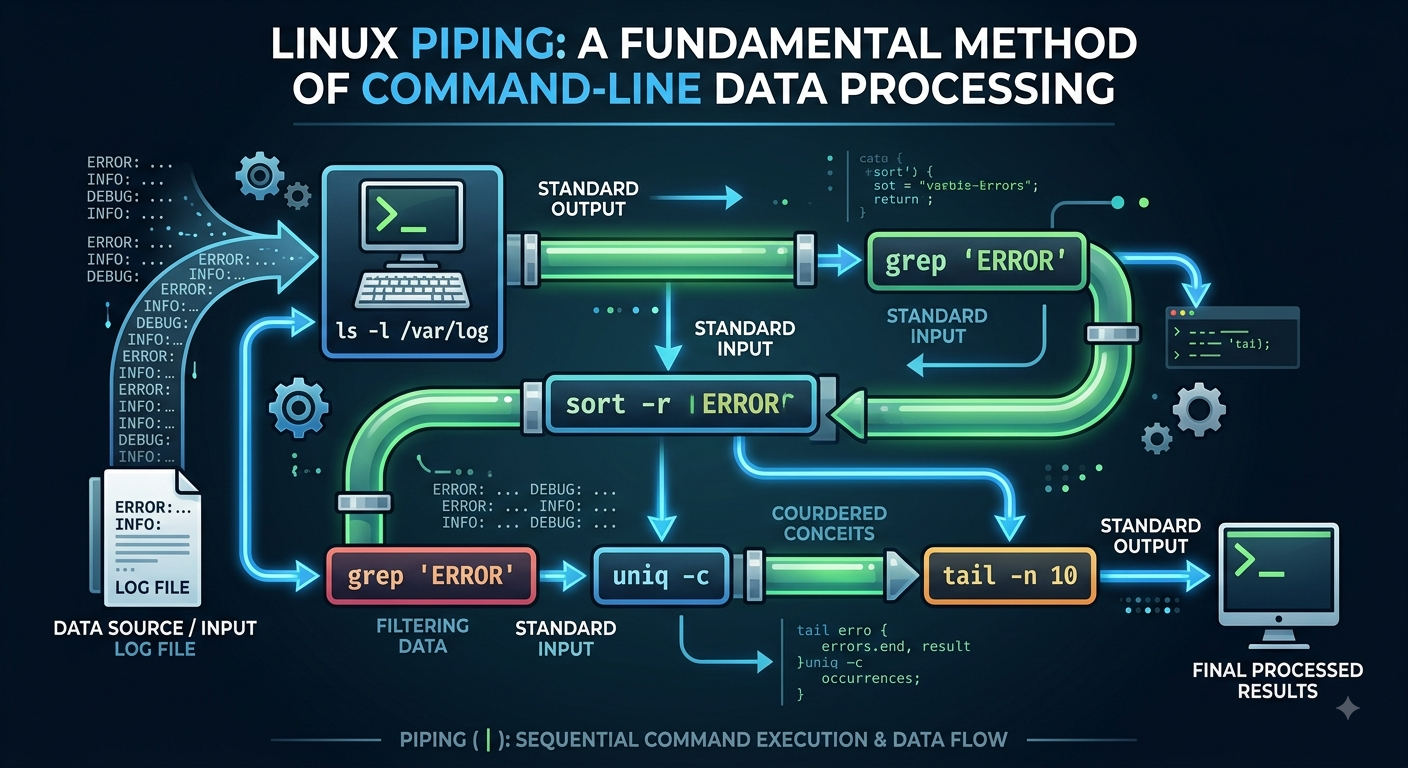
Linux Piping: A Fundamental Method of Command-Line Data Processing
Linux Piping: A Fundamental Method of Command-Line Data Processing
Abstract
Linux piping is one of the most useful features of the Linux command-line environment. It allows the output of one command to be transferred directly to another command as input, making it possible to combine simple utilities to perform more complex tasks. The concept is based on the Unix philosophy of developing small programs that perform specific functions and can work together when necessary. In Linux, the pipe operator, represented by the vertical bar (|), provides a connection between commands and allows information to move through a sequence of processing stages. This technique is widely used in system administration, software development, data processing, networking, and cybersecurity. This article examines the concept of Linux piping, its relationship with standard input and output, its syntax, common commands used in pipelines, and practical applications. It also discusses multiple pipelines, output redirection, advantages, limitations, and common mistakes made by beginners. Understanding Linux piping provides students with an important foundation for working efficiently with the command line and developing more advanced Linux and cybersecurity skills.
Keywords: Linux, piping, pipe operator, command line, shell, terminal, standard input, standard output, Unix, cybersecurity
1. Introduction
Linux is an operating system that is widely used in servers, cloud environments, programming, networking, cybersecurity, and academic computing. One of its most important characteristics is the power and flexibility of its command-line interface. Although modern Linux distributions provide graphical desktop environments, many technical tasks can be performed more efficiently through the terminal.
Among the features that make the Linux command line powerful is piping. Piping allows the output generated by one command to become the input of another command. Instead of running commands separately and manually transferring information between them, users can connect commands together to create a processing sequence.
The pipe operator is represented by the symbol |. A simple example is:
ls | less
In this example, the ls command produces a list of files and directories. The pipe sends that output to less, which allows the information to be viewed page by page.
The importance of piping becomes more obvious when dealing with large amounts of information. Linux provides many small utilities, such as grep, sort, uniq, head, tail, and wc. Each utility has a particular purpose, but they can be combined through pipes to solve more complicated problems.
For students learning Linux, piping is therefore more than just another command-line feature. It represents an important way of thinking about problem solving. Instead of looking for one program that performs an entire task, users can divide the task into smaller operations and connect appropriate tools together.
2. Background of Linux Piping
The idea of piping originated from the Unix operating-system tradition. Unix designers developed a philosophy based on small programs that perform specific tasks and can be combined to create more useful workflows. This philosophy contributed significantly to the flexibility of Unix and Linux command-line environments.
A command does not necessarily need to produce its final result directly for the user. Its output can instead be passed to another command. This makes it possible to construct a chain of operations.
For example:
command1 | command2 | command3
In this structure, the output from command1 is passed to command2, and the output from command2 is passed to command3.
This approach is particularly useful because each program can remain relatively simple. A text-searching program does not need to know how to sort information, and a sorting program does not need to know how to search for a particular word. The shell connects the programs and allows them to work together.
3. Standard Input and Standard Output
A basic understanding of Linux piping requires knowledge of standard input and standard output.
Linux programs normally work with three standard streams:
- Standard input (stdin)
- Standard output (stdout)
- Standard error (stderr)
Standard input is normally associated with information entered through the keyboard. Standard output is normally displayed on the terminal. Standard error is used for error messages and diagnostic information.
Consider the following command:
ls
The output produced by ls normally appears on the screen. When a pipe is added, the behavior changes:
ls | grep “.txt”
The output from ls is no longer intended only for direct display. Instead, it is passed to grep, which searches the incoming text for .txt.
The basic relationship can be represented as:
Command A → standard output → pipe → standard input → Command B
The pipe therefore acts as a connection between two processes.
4. Basic Syntax of a Pipeline
The general form of a pipeline is:
command1 | command2
The first command is executed and its output is passed to the second command.
For example:
ls | grep “report”
The ls command produces directory information, while grep filters that information and displays only lines containing the word report.
Pipelines can also contain several commands:
ls | sort | less
This pipeline performs three stages. First, ls produces the information. Next, sort organizes it. Finally, less provides an interactive way of viewing the result.
The ability to connect several commands is one of the main reasons the Linux shell is so powerful.
5. The grep Command in Pipelines
The grep command is one of the most commonly used utilities with pipes. Its primary purpose is to search text for patterns.
For example:
ps aux | grep “python”
The ps aux command produces information about running processes. The pipe sends that information to grep, which searches for lines containing python.
Another example is:
ip addr | grep “inet”
This filters the output of ip addr and displays lines containing the selected text.
The usefulness of grep becomes particularly clear when the original command produces a large amount of information. Rather than manually examining every line, users can apply a filter.
In system administration and cybersecurity, similar techniques are often used when examining logs or system information. However, a text match should not automatically be interpreted as proof of a security problem. It is simply a way of narrowing down information for further examination.
6. Sorting and Removing Duplicate Information
The sort command arranges lines of text, while uniq can remove repeated adjacent lines.
A common combination is:
cat names.txt | sort | uniq
The first command reads the file. The output is passed to sort, which arranges the entries. The result is then passed to uniq, which removes repeated adjacent entries.
The order of the commands matters. If duplicate lines are not next to one another, uniq may not remove them. Sorting the data first solves this problem in many simple cases.
Another useful option is:
sort names.txt | uniq -c
The -c option allows uniq to count repeated lines.
This type of processing can be useful when analyzing lists, logs, or other text-based information.
7. Using head and tail
The head command displays the beginning of input, while tail displays the end.
For example:
ps aux | head
This displays the first part of the process list.
Similarly:
ps aux | tail
displays the final part.
These commands are useful when the complete output is too large to examine at once.
The tail command is especially useful when looking at the most recent part of a log file. Linux also provides options that allow tail to follow a file as new information is added, making it useful for monitoring logs.
8. Counting Information with wc
The wc command is used to count lines, words, and characters.
For example:
cat notes.txt | wc -l
The -l option tells wc to count lines.
Piping makes the command more flexible. For instance:
ls | wc -l
can be used to count lines of output generated by ls.
A similar approach can be used with process information:
ps aux | wc -l
This provides a count of the lines in the resulting process listing.
It is important to remember that the number obtained depends on the format of the command’s output. Therefore, users should understand what is being counted instead of assuming that the result always represents an exact number of objects.
9. Using less to View Piped Output
The less command is commonly used to examine information that is too long to fit on one terminal screen.
For example:
ps aux | less
The process information is sent to less, allowing the user to move through it interactively.
Another example is:
ls -la /etc | less
This can make a long directory listing easier to examine.
The advantage of using less in a pipeline is that the first command does not need to know how the output will ultimately be displayed. It simply provides the information, while less handles the presentation.
10. Multiple Pipelines
More than two commands can be connected together.
For example:
cat access.log | grep “404” | sort | uniq -c
This pipeline can be understood as a series of operations:
- Read the log.
- Select entries containing 404.
- Sort the selected entries.
- Count repeated entries.
The individual commands are relatively simple, but their combination can provide useful information.
A longer pipeline might look complicated at first. For this reason, it is usually better to construct a pipeline step by step.
First:
grep “404” access.log
Then:
grep “404” access.log | sort
Then:
grep “404” access.log | sort | uniq -c
Testing each stage makes it easier to understand the data and identify mistakes.
11. Pipes and Output Redirection
Piping and redirection are related shell concepts, although they perform different functions.
The pipe operator sends output from one command to another:
command1 | command2
Output redirection sends output to a file.
For example:
ls > files.txt
This places the output of ls into files.txt.
The two techniques can be combined:
ls | grep “.txt” > text-files.txt
Here, ls generates the list, grep filters it, and the final output is stored in a file.
The >> operator can be used when information should be appended rather than replacing the existing contents:
date >> activity.log
Understanding the difference between piping and redirection is important when working with shell commands.
12. Piping in System Administration
System administrators regularly deal with large amounts of system information. Piping provides a convenient method for filtering and processing this information.
For example:
ps aux | grep “apache”
can help locate process-list entries containing the term apache.
Similarly:
ip addr | grep “inet”
can reduce network-interface information to lines containing IPv4 or IPv6 address information, depending on the system’s output.
Another common approach is to combine log-related commands with grep, head, tail, or less.
The main advantage is efficiency. Administrators do not have to manually examine every line of a large output when they already know what type of information they are looking for.
13. Piping in Cybersecurity
Piping is also valuable in cybersecurity because security work often involves processing large quantities of text and system information.
A security analyst may need to examine authorized system logs for failed authentication attempts, unusual processes, configuration information, or other events. Basic pipelines can help narrow down the information.
For example:
grep “failed” security.log | sort | uniq
This searches a log for entries containing the word failed, sorts them, and removes repeated adjacent entries.
The example is intentionally simple, but it demonstrates a useful principle. Instead of treating a large log as one huge collection of information, a pipeline can break the analysis into smaller stages.
Piping is also useful in security laboratories when students work with intentionally vulnerable systems or their own virtual machines. It provides practice in processing command output and understanding how different Linux utilities interact.
Any security testing or analysis should be performed only on systems for which the user has appropriate authorization.
14. Advantages of Linux Piping
Linux piping provides several important advantages.
14.1 Efficiency
Pipes eliminate the need to manually copy information from one command to another. Data can move directly between programs.
14.2 Modularity
Each command can focus on a particular task. This makes programs easier to understand and reuse.
14.3 Flexibility
The same command can be placed into many different pipelines. For example, grep can process output from ls, ps, ip, or other commands.
14.4 Automation
Pipelines can be included in shell scripts. This makes it possible to automate repetitive tasks and create repeatable workflows.
14.5 Reduced Complexity
A complicated task can often be divided into several smaller operations. This can make the overall problem easier to understand.
15. Limitations and Common Mistakes
Although piping is powerful, it can also cause confusion when used without understanding the commands involved.
One common mistake is creating a pipeline without checking the output of individual commands. If the first command produces unexpected information, every later stage may also produce an unexpected result.
Another problem is unnecessarily complicated pipelines. A long command containing many pipes may be difficult for another person to read or maintain. In some situations, a shorter pipeline or a specialized command may be more appropriate.
Users should also understand that pipes primarily connect standard output to standard input. Error messages normally use standard error and may not automatically behave in the same way as ordinary output.
For example, if a command produces an error, simply placing a pipe after it does not necessarily send that error message to the next command. Handling standard error requires additional shell techniques.
This distinction becomes increasingly important as users move from basic command-line exercises toward shell scripting and system administration.
16. Learning Linux Piping
The most effective way to learn piping is through practical experimentation in a safe environment.
A beginner can start with a simple command:
ls | less
After understanding that example, they can try:
ls | grep “.txt”
Then another command can be added:
ls | grep “.txt” | sort
Finally:
ls | grep “.txt” | sort | less
The purpose of this exercise is not to memorize the final command. Instead, it teaches how individual commands can be connected.
Students should also experiment with commands separately. Understanding grep, sort, uniq, wc, head, tail, and less individually makes it much easier to understand their behavior inside a pipeline.
Linux manual pages and built-in help options are useful resources when learning unfamiliar commands.
17. Practical Significance
The concept of piping reflects an important characteristic of Unix and Linux design. Rather than creating one enormous tool that attempts to solve every possible problem, Linux provides many smaller utilities that can be combined.
This approach is valuable beyond basic file management. The same principle appears in shell scripting, automation, software development, data processing, and security analysis.
For a student, learning piping can also improve general problem-solving skills. When faced with a task, the student learns to ask several questions: What information do I have? Which command can produce it? How can I filter it? How can I organize the result? Can another command process the result further?
These questions help turn the command line from a collection of memorized commands into a practical problem-solving environment.
18. Conclusion
Linux piping is a fundamental feature of the command-line environment and an important skill for anyone studying Linux. By using the pipe operator (|), the standard output of one command can be connected to the standard input of another. This makes it possible to combine simple utilities and perform increasingly complex operations.
Commands such as grep, sort, uniq, wc, head, tail, and less demonstrate the usefulness of pipelines. Individually, each command performs a relatively specific task. When combined, however, they can filter, organize, count, and display information efficiently.
Piping has practical applications in system administration, programming, data processing, and cybersecurity. It can reduce repetitive work, support automation, and make large amounts of information easier to analyze. At the same time, users need to understand how each command works and should avoid creating complicated pipelines without first testing their individual stages.
For beginners, the best approach is to learn piping gradually. Start with two commands, understand how information moves between them, and then add additional commands when necessary. With regular practice, the pipe operator becomes more than a symbol in a command. It becomes a method of solving problems.
Ultimately, Linux piping demonstrates one of the most useful ideas behind the Linux command-line environment: simple tools can be combined to accomplish tasks that are much more complex than any individual tool was designed to handle. Developing this skill provides a strong foundation for further study of Linux, shell scripting, system administration, and cybersecurity.
References
- Shotts, W. E. (2019). The Linux Command Line: A Complete Introduction (2nd ed.). No Starch Press.
- Barrett, D. J. (2016). Linux Pocket Guide: Essential Commands (3rd ed.). O’Reilly Media.
- Nemeth, E., Snyder, G., Hein, T. R., Whaley, B., & Mackin, D. M. (2017). UNIX and Linux System Administration Handbook (5th ed.). Pearson.
- Free Software Foundation. (n.d.). GNU Coreutils Manual. GNU Project.
- GNU Project. (n.d.). Bash Reference Manual. Free Software Foundation.
- The Linux Foundation. (n.d.). Introduction to Linux. Linux Foundation.
- Debian Project. (n.d.). Debian Administrator’s Handbook. Debian Documentation Project.
- Kali Linux. (n.d.). Kali Linux Documentation. Offensive Security.