
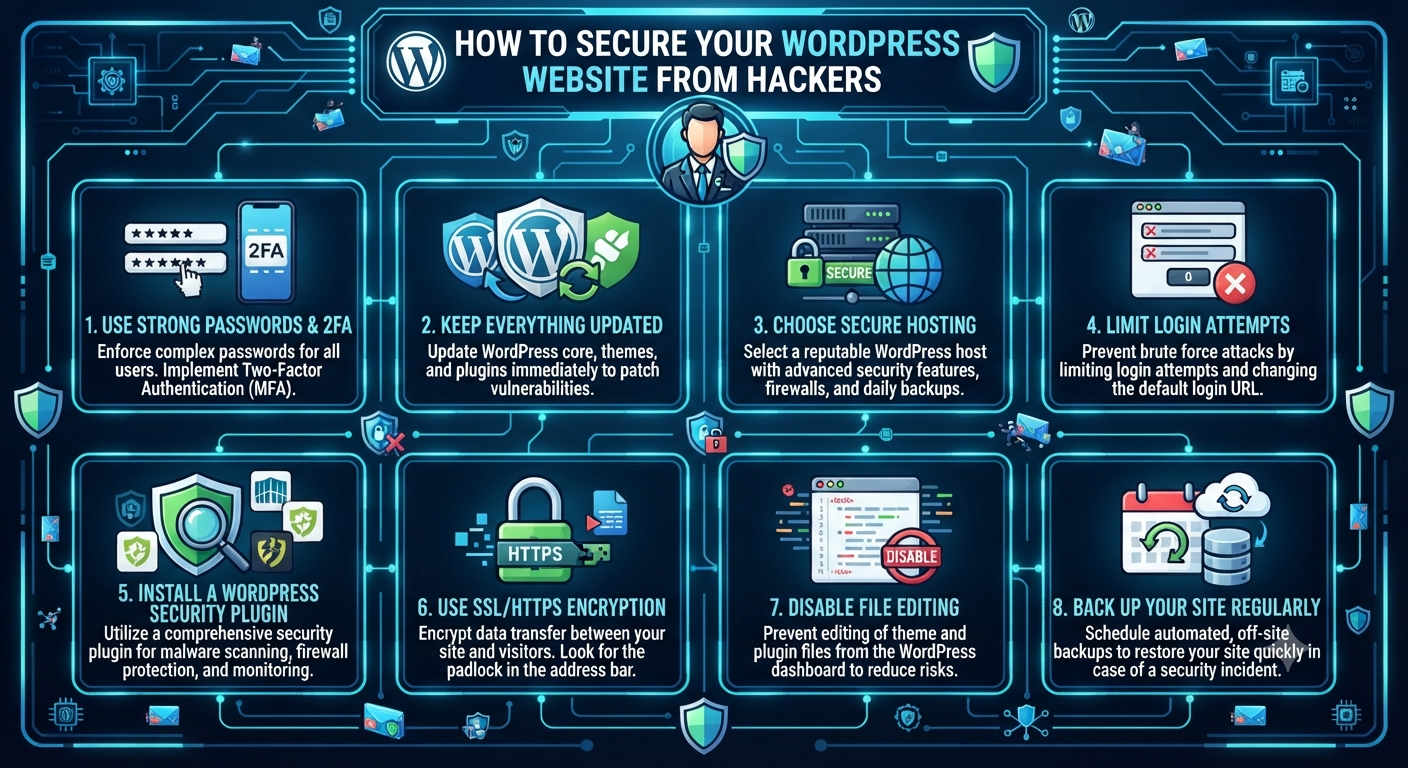
How to Secure Your WordPress Website from Hackers
How to Secure Your WordPress Website from Hackers

In today’s digital world, your website is your storefront, your reputation, and often your primary source of income. WordPress powers more than 40% of all websites, making it a favorite not only for bloggers and businesses—but also for hackers. If you think your site is too small to be a target, think again: automated bots constantly scan the web looking for vulnerable sites. But with the right steps, you can dramatically reduce your risk.
This guide will show you how to secure your WordPress website from hackers, giving you the peace of mind to focus on what you do best—growing your brand and serving your audience.
Why Hackers Target WordPress Sites
Let’s bust a myth: hackers don’t just go after big names. In fact, small businesses and personal sites are often easier targets because they have weaker defenses. Here’s what hackers want:
- Data theft: Customer information, payment details, and emails can be stolen and sold.
- Spreading malware: Infecting your site to deliver malware to visitors and damage your reputation.
- SEO hijacking: Injecting links or content to boost other sites’ search rankings.
- Ransom: Locking your site or files and demanding payment.
- Botnets: Using your site’s resources for mass attacks or spam.
WordPress’s popularity is its biggest strength and its biggest weakness because vulnerabilities can scale quickly.
1. Keep WordPress Core, Themes, and Plugins Updated
Why it matters:
Most successful attacks exploit known vulnerabilities in outdated software. Developers constantly release patches and updates to fix security holes.
How to stay safe:
- Enable automatic updates for minor WordPress core releases.
- Regularly log in and check for updates for themes and plugins.
- Delete unused plugins and themes—not just deactivate them.
- Subscribe to plugin/theme developer updates and WordPress security blogs.
2. Use Strong, Unique Passwords and Two-Factor Authentication
Weak passwords are a hacker’s dream. Brute-force bots can guess “admin” and “password123” in seconds.
Best practices:
- Use long, complex passwords with uppercase, lowercase, numbers, and symbols.
- Never reuse passwords between your site and other services.
- Use a password manager (like LastPass or Bitwarden) to generate and store secure passwords.
- Enable two-factor authentication (2FA) for all administrator and editor accounts using plugins such as Wordfence Login Security or Google Authenticator.
3. Limit Login Attempts and Hide Your Login Page
By default, WordPress allows unlimited login attempts, making brute-force attacks easy.
Defensive steps:
- Install a plugin like Limit Login Attempts Reloaded to restrict failed login tries.
- Change the default login URL from
/wp-login.phpor/wp-adminto something unique using WPS Hide Login. - Block access to the login page from certain countries or IP addresses if your audience is local.
4. Choose Trusted Themes and Plugins
Not all WordPress add-ons are created equal. Poorly coded or abandoned plugins/themes are a major vulnerability.
How to choose safely:
- Download only from reputable sources (WordPress.org or trusted developers).
- Check reviews, update frequency, and active installations.
- Delete anything you’re not using—deactivated plugins/themes can still be exploited.
- Avoid “nulled” or pirated themes and plugins—they often contain hidden malware.
5. Secure Your Hosting Environment
Your hosting provider is your first line of defense.
Hosting security essentials:
- Choose a reputable host with a strong security track record.
- Ensure they offer features like firewalls, daily backups, SSL certificates, and malware scanning.
- Ask about their disaster recovery and incident response plans.
Consider managed WordPress hosting for automatic updates, staging environments, and extra security layers.
6. Use HTTPS and an SSL Certificate

Why it matters:
SSL encrypts data between your website and your visitors, protecting login credentials, payment info, and other sensitive data.
How to implement:
- Most hosts offer free SSL certificates via Let’s Encrypt.
- Use a plugin like Really Simple SSL to force HTTPS across your site.
- Update Google Search Console and Analytics to the HTTPS version of your site.
7. Set Proper User Roles and Permissions
Not everyone needs admin access. Limiting permissions reduces the risk of accidental or intentional changes.
Steps to take:
- Assign users only the role they need (Subscriber, Contributor, Author, Editor, Administrator).
- Regularly audit and remove inactive or unnecessary accounts.
- Require strong passwords and 2FA for all users with elevated privileges.
8. Install a WordPress Security Plugin
Security plugins add extra layers of protection—firewalls, malware scanning, login monitoring, and more.
Top security plugins:
Set up alerts for suspicious activity, enable brute-force protection, and run regular malware scans.
9. Regularly Backup Your Website
No security is perfect. If disaster strikes, a recent backup is your lifeline.
Backup tips:
- Use plugins like UpdraftPlus or BackupBuddy.
- Schedule automatic backups (daily or weekly, depending on how often you update content).
- Store backups offsite—in the cloud (Dropbox, Google Drive) or a secure remote server.
- Test your backups regularly to ensure they restore correctly.
10. Harden Core Files and Server Settings
Advanced attackers often target file permissions and server configurations.
How to harden:
- Protect your
wp-config.phpand.htaccessfiles by restricting access and movingwp-config.phpone directory above the root if your host allows. - Set file permissions to 644 for files and 755 for directories—never use 777.
- Disable file editing in the dashboard by adding
define('DISALLOW_FILE_EDIT', true);to yourwp-config.php. - Limit PHP execution in vulnerable directories (
/uploads/,/wp-content/).
11. Monitor Activity and Audit Logs
Keeping an eye on what’s happening under the hood helps you spot suspicious actions before they become disasters.
Plugins for logging:
Monitor:
- User logins and failed attempts
- File changes and plugin installs
- Settings adjustments
12. Protect Against DDoS Attacks
Distributed Denial-of-Service (DDoS) attacks can overwhelm your site with fake traffic.
Defensive measures:
- Use a CDN (Content Delivery Network) like Cloudflare or Sucuri, which offer DDoS protection and caching.
- Block suspicious IPs and limit XML-RPC requests if not needed.
- Regularly monitor server resources for unusual spikes.
13. Disable Directory Listing
If directory listing is enabled, hackers can see all files in your folders—a roadmap for attacks.
How to disable:
- Add
Options -Indexesto your.htaccessfile.
14. Secure Your Database
Your WordPress database contains all your posts, pages, and settings.
Best practices:
- Change the default database prefix (
wp_) during installation or use a plugin to rename it. - Use strong passwords for your database user.
- Restrict database user privileges to only what’s needed.
- Regularly back up your database separately.
15. Limit Access to wp-admin and wp-login.php
If you don’t need global access to your admin panel, restrict it:
- Limit by IP address in
.htaccess(great for fixed locations). - Use a VPN to access admin pages securely from anywhere.
16. Remove Unused Services and Clean Up Old Files
Every extra plugin, theme, or leftover file is a potential vulnerability.
Tips:
- Delete old backups, installation files, or export files from your server.
- Remove deactivated plugins and themes.
- Regularly review your file manager for forgotten uploads or scripts.
17. Educate Yourself and Your Team
Human error is still the #1 cause of breaches. Stay informed:
- Subscribe to security newsletters or blogs (like WPScan, Wordfence, Sucuri).
- Train contributors and editors to spot phishing, suspicious links, and social engineering.
18. Prepare an Incident Response Plan
If the worst happens, having a plan can save your site and your sanity.
Key elements:
- Keep emergency contacts for your host and security providers handy.
- Know how to restore from backup.
- Have template notifications for customers or users.
- Review logs and document what happened for post-incident analysis.
Quick Checklist: Secure Your WordPress Site
- Are all themes, plugins, and WordPress core up to date?
- Are passwords strong, unique, and protected by 2FA?
- Is login and user access tightly controlled?
- Is a security plugin active and configured?
- Are backups running and stored offsite?
- Is SSL/HTTPS enabled?
- Are file permissions and server settings hardened?
- Is your database secured and regularly backed up?
- Are unused plugins, themes, and files removed?
- Is there an incident response plan in place?
The Human Side: Security Is a Habit, Not a One-Time Task
Image: Team reviewing website security together.
Technology alone can’t keep your site safe. Real security comes from ongoing vigilance, good habits, and a willingness to learn. Make updates, backups, and reviews part of your regular routine—not just something you scramble to do after a scare.
Remember:
- Start with the basics—even small steps dramatically boost your security.
- Involve your team or contributors in security training.
- Stay curious about new threats and solutions.
Final Thoughts: Build a Strong, Secure Foundation
Securing your WordPress website isn’t just about checking boxes—it’s about protecting your work, your visitors, and your reputation. The risks are real, but so are the rewards of a proactive approach.
By following these steps, you’re not just defending your site—you’re building trust with every visitor. And in the digital age, trust is your most valuable asset.