
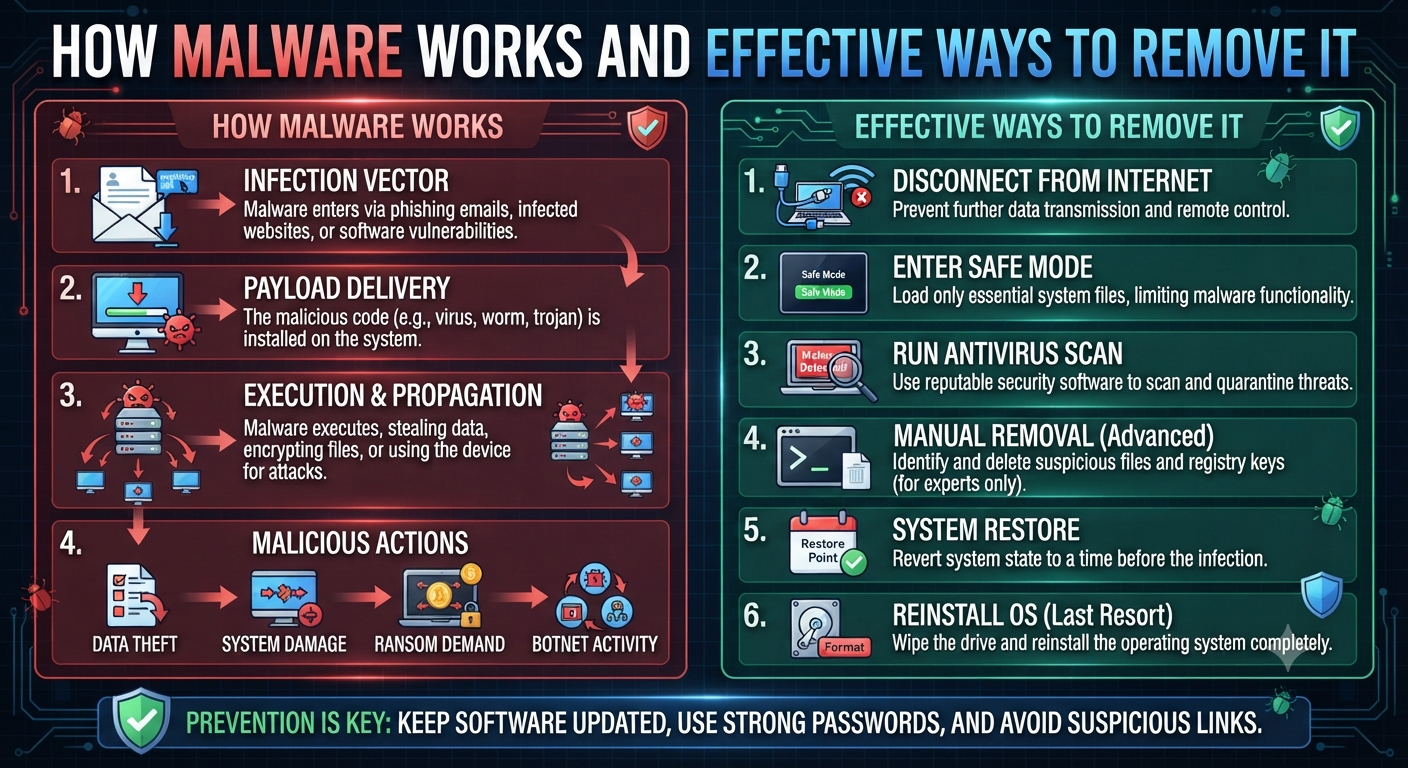
How Malware Works and Effective Ways to Remove It
How Malware Works and Effective Ways to Remove It

In our hyper-connected world, malware is one of the most persistent threats facing individuals, businesses, and organizations of all sizes. Whether it’s a virus that corrupts your files, ransomware that locks your data for ransom, or spyware quietly stealing your personal info, malware can wreak havoc in countless ways.
But what exactly is malware? How does it infiltrate your system? And, most importantly, what can you do to remove it and defend your digital life? This guide breaks it all down in plain English, offering actionable steps to keep your devices—and your peace of mind—safe.
What Is Malware?
Malware is short for “malicious software.” It refers to any software or code designed to harm, exploit, or otherwise compromise computers, networks, or users. Some malware is obvious, disrupting your system or displaying ransom demands. Other types are stealthy, silently gathering your passwords, banking info, or tracking your browsing habits.
Common Types of Malware
- Viruses: Attach themselves to clean files and spread when the file runs.
- Worms: Self-replicate and spread across networks, often without user intervention.
- Trojans: Disguise themselves as legitimate programs but act maliciously once installed.
- Ransomware: Encrypts your files and demands payment for the decryption key.
- Spyware: Monitors your activity and steals sensitive information.
- Adware: Displays unwanted ads, sometimes redirecting your browser or slowing your system.
- Rootkits: Hide deep within your system to evade detection and maintain control.
- Fileless Malware: Operates in memory, leaving few traces on disk, making it hard to detect.
How Does Malware Infect Your System?
Understanding how malware spreads helps you avoid infection. Here are the most common infection vectors:
1. Phishing Emails
Cybercriminals often send emails that look like they’re from trusted sources. These emails may contain malicious attachments or links that, when clicked, download malware onto your device.
2. Malicious Downloads
Free software, pirated programs, or even seemingly innocent browser extensions can be bundled with malware. Downloading from untrustworthy sites is a major risk.
3. Infected Websites (Drive-by Downloads)
Simply visiting a compromised website—sometimes even legitimate ones—can automatically download malware to your computer if your browser or plugins aren’t up to date.
4. Removable Media
USB drives, external hard drives, and SD cards can carry malware from one device to another, especially if “autorun” is enabled.
5. Exploiting Vulnerabilities
Hackers target out-of-date software, operating systems, and plugins, exploiting known weaknesses to install malware.
6. Social Engineering
Attackers trick you into downloading or running malicious software by posing as tech support, sending fake updates, or using urgent scare tactics.
7. Network and Wi-Fi Attacks
Open or poorly secured Wi-Fi networks can be exploited to deliver malware to connected devices.
What Happens When Malware Infects Your Device?
The effects of a malware infection can range from annoying to catastrophic, including:
- Sluggish performance: Malware can hog your CPU and memory, making your device slow.
- Frequent crashes or errors: Files may get corrupted, or system stability can be compromised.
- Pop-up ads or browser redirects: Adware or spyware loves to hijack your browser.
- Disabled security software: Some malware tries to turn off your antivirus so it can operate undetected.
- Data theft or unauthorized access: Spyware and keyloggers can steal passwords, bank info, and sensitive files.
- Ransom demands: Ransomware locks your files and demands payment.
- Unusual network activity: Malware may use your device to send spam or join a botnet.
Key takeaway:
Not all malware announces itself. Some infections run silently in the background, causing harm without clear symptoms.
How to Detect Malware on Your Device
Early detection is crucial. Here’s what to watch for:
Signs of Malware Infection
- Slow or unresponsive computer
- Unexpected pop-ups or ads, even when not browsing
- Browser homepage or search engine changes without your consent
- Programs you didn’t install appear on your device
- Security software is disabled or can’t be updated
- Files go missing or are encrypted
- Frequent crashes or system instability
- Friends receive suspicious emails or messages from your accounts
Using Security Tools
- Antivirus/Anti-malware scans: Run a full system scan using up-to-date security software.
- Task Manager/Activity Monitor: Look for unfamiliar processes using high CPU, memory, or network.
- Network monitoring: Check for unusual outbound connections or high network usage.
Effective Ways to Remove Malware
Removing malware requires a systematic, thorough approach. Here’s a step-by-step guide:
1. Disconnect from the Internet
As soon as you suspect an infection, disconnect your device. This can prevent the malware from sending out data, downloading more threats, or spreading across your network.
2. Enter Safe Mode
Booting into Safe Mode limits the programs and services that run, making it harder for malware to hide or defend itself.
How to enter Safe Mode:
- On Windows: Restart and repeatedly press F8, or use Start > Settings > Update & Security > Recovery > Advanced startup.
- On Mac: Restart and hold the Shift key.
3. Delete Temporary Files
Clearing out temp files can remove some malware and speed up scanning.
- On Windows: Use Disk Cleanup or type
%temp%in the Run dialog and delete files. - On Mac: Use Finder to search for and clear
~/Library/Caches.
4. Run a Full Malware Scan
Use a reputable antivirus or anti-malware tool to perform a full system scan. Consider using more than one tool for a “second opinion” (but don’t run two at the same time).
Top malware removal tools:
- Malwarebytes Anti-Malware
- Bitdefender Antivirus
- Kaspersky Virus Removal Tool
- Windows Defender (built-in on Windows 10/11)
- ESET Online Scanner
Follow the software’s instructions to quarantine or remove any threats it finds.
5. Remove or Disable Suspicious Programs and Extensions
- Uninstall unknown programs via Control Panel (Windows) or Applications (Mac).
- Disable or remove suspicious browser extensions or add-ons.
6. Update Your Operating System and Software
After removal, update your OS, browsers, plugins, and all apps. This closes vulnerabilities that the malware might have exploited.
7. Change Your Passwords
If you suspect spyware or keyloggers were involved, change your passwords from a clean device. Focus on important accounts (email, banking, cloud storage) first.
8. Restore from Backup (If Needed)
If your files are corrupted, encrypted, or you can’t fully clean your system, restore from a backup made before the infection. Make sure the backup itself isn’t infected before restoring.
9. Seek Professional Help
If malware persists, you’re unsure about the steps, or you’re dealing with a critical business system, consult a cybersecurity expert. They can perform deeper forensics and ensure your system is truly clean.
What NOT to Do When Removing Malware
- Don’t ignore the problem: Malware doesn’t go away on its own.
- Don’t pay ransomware demands: There’s no guarantee you’ll get your files back, and it encourages further crime.
- Don’t use outdated antivirus tools: Modern malware can evade old or unmaintained products.
- Don’t connect infected devices to other networks or drives: This can spread the infection.
How to Prevent Malware Infections (Long-Term Protection)
Prevention is always better than cure! Adopt these habits and tools to minimize your risk:
1. Keep Everything Updated
Regularly update your operating system, browsers, plugins, and software. Enable automatic updates where possible.
2. Use Antivirus and Anti-Malware Protection
Install reputable security software and keep it current. Set up regular, automatic scans.
3. Be Wary of Email Attachments and Links
Don’t open attachments or click links from unknown senders. Even if an email looks legitimate, verify before acting on urgent or suspicious requests.
4. Download Only from Trusted Sources
Avoid pirated software, unofficial websites, and shady downloads. Always use official app stores and developer websites.
5. Use Strong, Unique Passwords
Weak or reused passwords make it easier for malware and hackers to compromise your accounts. Use a password manager to create and store strong logins.
6. Enable Firewalls
Use the built-in firewall in your operating system or a reputable third-party firewall. This adds an extra layer of protection against network-based attacks.
7. Educate Yourself and Your Team
Cybersecurity is as much about people as it is about technology. Learn to recognize phishing emails, social engineering, and other common attack tactics.
8. Regular Backups
Back up your data regularly—and keep at least one backup offline. This is your best defense against ransomware and catastrophic data loss.
9. Limit User Privileges
Don’t use an “administrator” account for everyday tasks. Limit privileges to only what’s necessary, especially on business systems.
10. Secure Your Wi-Fi Network
Use WPA3 (or at least WPA2) encryption, set a strong password, and avoid using default router settings.
Popular Myths About Malware
-
“I have a Mac, so I can’t get malware.”
Macs are less targeted, but not immune. All platforms should have protection. -
“Antivirus alone will keep me safe.”
Even the best software can’t prevent every threat. Safe habits are just as important. -
“You’ll always know if you’re infected.”
Many infections are silent and invisible. Regular scans are essential. -
“Only risky websites spread malware.”
Even trusted sites can be compromised and used to deliver malware.
The Human Side: Why Vigilance Matters
Technology is vital—but people are often the weakest link or the strongest defense. Stay curious, stay skeptical, and make security a habit, not an afterthought.
Final Thoughts: Taking Control of Your Digital Security
Malware is a fact of digital life, but it doesn’t have to be a disaster. By understanding how malware works, recognizing the signs of infection, and following a structured removal process, you can recover quickly and get back to work with confidence.
Remember:
- Prevention is key—update, back up, and stay informed.
- Early detection and decisive action limit the damage.
- Good habits and solid tools are your best defense.
Don’t wait for an infection to strike. Start strengthening your digital defenses today and help make the internet a safer place for everyone.