
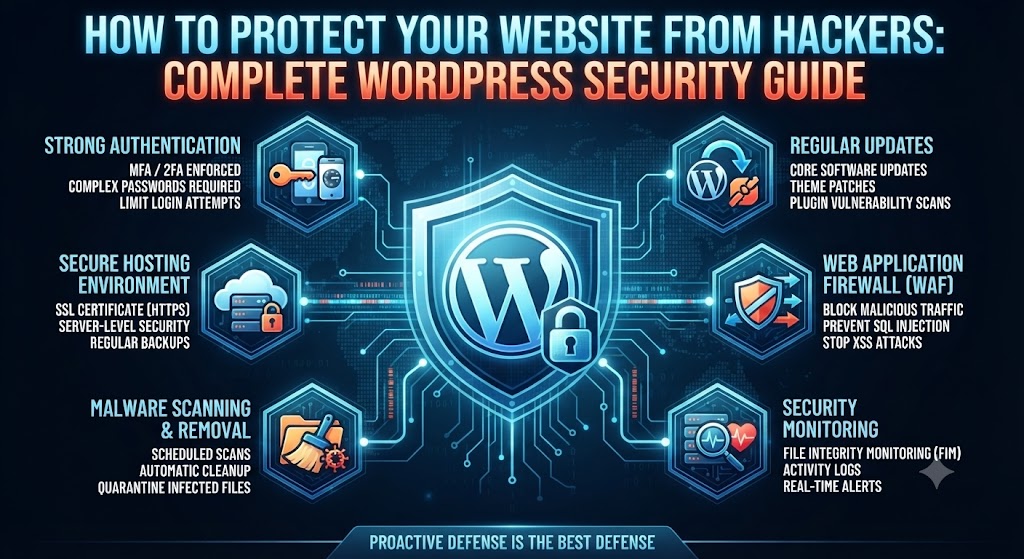
Complete WordPress Security Guide
How to Protect Your Website from Hackers: Complete WordPress Security Guide

Running a website is an exciting adventure—whether you’re sharing your passion, building a business, or running a digital storefront. But along with opportunity comes risk. Every website, big or small, is a potential target for hackers. WordPress, the world’s most popular website platform, is no exception.
If you think, “Why would anyone hack my site?” consider this: hackers don’t always target big brands. Automated bots scan millions of websites daily, looking for vulnerabilities to exploit—no matter your site’s size or topic.
But don’t worry! With the right steps, you can significantly reduce your risk and keep your site, your content, and your visitors safe.
Why Hackers Target WordPress Sites
WordPress powers over 40% of the web. Its popularity makes it a tempting target.
Hackers might want to:
- Steal data (like customer info or email addresses)
- Inject spam or malware
- Redirect your visitors to scam sites
- Hold your website hostage for ransom
- Use your server to send spam or join a botnet
Most attacks are automated and look for common weaknesses—not just high-profile sites.
1. Keep WordPress, Themes, and Plugins Updated

The number one reason WordPress sites get hacked? Outdated software.
Developers regularly release updates to patch security holes. If you delay updates, you leave your site exposed.
What to do:
- Enable automatic updates if possible.
- Check for updates to WordPress core, themes, and plugins at least weekly.
- Remove unused plugins and themes—unused code is a risk.
2. Use Strong, Unique Passwords
Weak passwords are an easy win for hackers. Tools called “brute-force bots” can guess thousands of common passwords per second.
Tips for strong passwords:
- Use at least 12 characters, mixing upper/lowercase letters, numbers, and symbols.
- Avoid names, birthdays, or easy patterns.
- Consider a password manager to generate and store complex passwords securely.
Don’t reuse passwords between your site and other services!
3. Enable Two-Factor Authentication (2FA)
2FA adds a second layer of security—usually a unique code from your phone.
How to set up 2FA:
- Use plugins like Wordfence Login Security or Google Authenticator.
- Require 2FA for all admin accounts.
Even if someone steals your password, they can’t log in without your phone or authenticator device.
4. Choose Reliable Themes and Plugins
Not all plugins and themes are created equal. Poorly coded or abandoned plugins are a major security risk.
How to choose safely:
- Download only from reputable sources like the WordPress.org repository or trusted vendors.
- Check plugin reviews, last update date, and active installations.
- Delete any plugins or themes you no longer use.
5. Limit Login Attempts and Hide Login Page
By default, WordPress lets users try to log in as many times as they want. Limiting attempts stops brute-force bots in their tracks.
How to do it:
- Use plugins like Limit Login Attempts Reloaded.
- Consider changing your login page URL from
/wp-login.phpto something unique using WPS Hide Login.
6. Use SSL/HTTPS
An SSL certificate encrypts data between your website and your visitors. Google also gives HTTPS sites a small SEO boost.
How to get SSL:
- Many hosts provide free SSL via Let’s Encrypt.
- Install and force HTTPS using a plugin like Really Simple SSL.
7. Set Proper User Roles and Permissions
Don’t give every user admin rights! WordPress has roles like Administrator, Editor, Author, Contributor, and Subscriber.
Best practices:
- Give users the minimum permissions they need.
- Regularly review user accounts.
- Remove or downgrade accounts for ex-employees or inactive users.
8. Install a WordPress Security Plugin
A good security plugin can:
- Block suspicious traffic
- Scan for malware
- Monitor file changes
- Enforce strong passwords
- Alert you to issues
Popular security plugins:
9. Backup Your Website Regularly
No security plan is perfect. If you get hacked, a recent backup lets you restore your site quickly.
Tips:
- Use plugins like UpdraftPlus or BackupBuddy.
- Store backups offsite (cloud storage or external drive).
- Test your restore process occasionally.
10. Secure Your wp-config.php and .htaccess Files
These files contain sensitive settings and should be protected.
How to secure them:
- Add the following code to your
.htaccessfile to restrict access: - Move
wp-config.phpone directory above your web root if your host allows.
11. Disable File Editing from the Dashboard
Hackers who gain access to your admin can inject malware using the file editor.
Solution:
Add this line to your wp-config.php file:
12. Monitor and Log Activity
Keep an eye on what’s happening under the hood. Monitoring plugins can alert you to suspicious actions.
Suggestions:
13. Protect Against DDoS Attacks
Distributed Denial of Service (DDoS) attacks flood your site with traffic, making it unavailable.
How to minimize risk:
- Use a CDN with built-in DDoS protection (e.g., Cloudflare).
- Block suspicious IPs and limit XML-RPC requests.
14. Harden Your Database
- Use a custom database prefix (not the default
wp_). - Restrict database user privileges.
- Change your database password regularly.
15. Remove Unused Services and Scripts
Every extra feature is a potential vulnerability. Turn off or uninstall anything you don’t need.
Final Thoughts: Make Security a Habit

Securing your WordPress website isn’t a one-time job—it’s a continuous process. Hackers never rest, and neither should your vigilance. Review your security setup regularly, stay informed about new threats, and make updates part of your website routine.
Quick Checklist:
- Are all plugins, themes, and WordPress core up to date?
- Are backups running and stored offsite?
- Is 2FA enabled for all admin users?
- Are strong, unique passwords enforced?
- Is a security plugin active and configured?
By following these steps, you’ll make your site a much harder target—and keep your content, your visitors, and your reputation safe.