
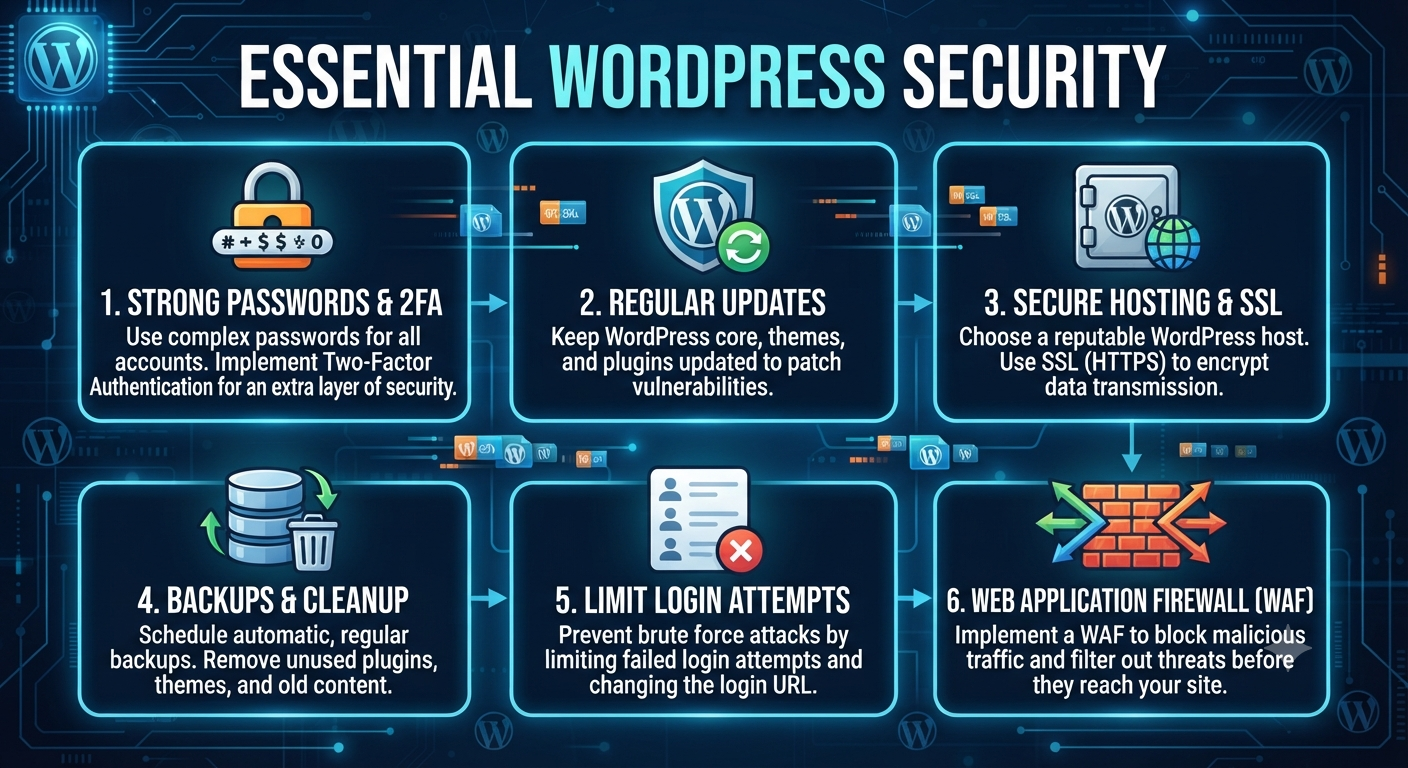
Essential WordPress Security
Essential WordPress Security: Protecting Your Site in 2026

As WordPress continues to dominate the web, powering everything from hobby blogs to global business sites, it faces constant attention—not just from fans and users, but from hackers as well. If you’re a site owner, WordPress security isn’t just a technical detail; it’s the foundation of your site’s trust and longevity.
In 2026, with cyber threats growing more sophisticated, it’s never been more important to understand how to protect your WordPress site. This guide will walk you through the main reasons sites get hacked, essential steps to safeguard your site, and practical advice for building a security-first mindset.
Why WordPress Sites Get Hacked
Let’s start with a hard truth: if you have a website, you’re a target. Hackers aren’t just after the big names. In fact, most attacks are automated—bots roam the internet looking for any site with a weakness, regardless of its size or fame. Here’s why WordPress sites are often in the crosshairs:
- Popularity: With over 40% of the web running on WordPress, it’s a massive target zone for cybercriminals. More users mean more potential victims.
- Outdated Software: Many site owners forget or delay updates, leaving known vulnerabilities exposed.
- Weak Passwords: Simple or reused passwords make it easy for bots to break in with brute-force attacks.
- Unsafe Plugins/Themes: Not all plugins and themes are created or maintained equally. Outdated or poorly-coded add-ons create security gaps.
- Default Settings: Failing to customize your site’s settings gives hackers a roadmap for attack.
The good news? With awareness and the right steps, you can make your site an unappealing target for attackers.
Essential Security Steps for WordPress
Let’s dive into the core actions that will help keep your WordPress site safe and secure.
1. Keep Everything Updated
Every software update isn’t just about new features—most importantly, updates patch security holes. Hackers often scan for outdated WordPress installations, plugins, or themes.
Action Steps:
- Log in weekly to check for updates.
- Enable automatic updates for plugins and the WordPress core if possible.
- Remove plugins and themes you’re not using. Unused code is still a risk.
2. Use Strong, Unique Passwords
Passwords are your first line of defense. Yet, “admin” and “password123” are still shockingly common. Hackers use automated bots to guess passwords by the thousands every minute.
Action Steps:
- Use passwords that are at least 12 characters, mixing upper/lowercase, numbers, and symbols.
- Change your passwords regularly, especially for admin accounts.
- Use a password manager to generate and remember complex passwords.
- Never reuse passwords from other sites.
3. Install a Security Plugin
WordPress security plugins are like having a security guard for your site. They can block suspicious traffic, scan for malware, monitor changes, and alert you to threats.
Top Plugins:
These tools provide features like firewalls, malware scanning, real-time alerts, login protection, and more.
4. Limit Login Attempts
By default, WordPress lets users try to log in as many times as they want. Brute-force bots take advantage of this to guess passwords.
Action Steps:
- Use plugins like Limit Login Attempts Reloaded to set a cap on failed logins.
- Temporarily lock out users after several failed attempts.
- Combine with two-factor authentication for maximum protection.
5. Implement SSL/HTTPS
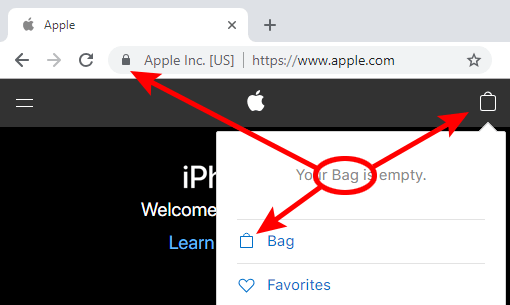
SSL (Secure Sockets Layer) encrypts data between your website and its visitors, preventing eavesdropping and data theft. Google also favors HTTPS sites in search rankings.
Action Steps:
- Ask your host for a free SSL certificate (most offer Let’s Encrypt).
- Force HTTPS sitewide with a plugin like Really Simple SSL.
- Check for mixed content—make sure all resources load securely.
6. Back Up Regularly
Even with all the right security measures, no site is immune. Regular backups are your lifeline if disaster strikes—whether from hacking, server problems, or accidental errors.
Action Steps:
- Install a backup plugin like UpdraftPlus or BackupBuddy.
- Schedule automatic backups (daily or weekly, depending on your content updates).
- Store backups offsite—in the cloud (Dropbox, Google Drive) or on a separate server.
- Periodically test your backup restore process.
7. Remove Unused Plugins and Themes
Every active plugin or theme is a possible entry point for hackers—even if you’re not using it.
Action Steps:
- Uninstall (not just deactivate) any plugins or themes you no longer need.
- Stick to reputable sources—WordPress.org, trusted developers, or major theme/plugin shops.
- Update all your add-ons regularly.
8. Secure wp-config.php and .htaccess
These core files contain sensitive information about your site’s configuration and database. Protecting them is essential.
Action Steps:
- Restrict file access in your
.htaccessfile with: - Move
wp-config.phpone directory above your root folder, if your host allows. - Limit file permissions to the minimum necessary, typically 400 or 440 for
wp-config.php.
9. Monitor User Roles

Give users only the access they need. An editor doesn’t need admin privileges, and contributors shouldn’t be able to install plugins.
Action Steps:
- Regularly review all user accounts.
- Remove or downgrade access for former team members or inactive users.
- Use plugins like User Role Editor to customize permissions.
10. Hide or Change the Login URL
The default login page (/wp-login.php or /wp-admin) is well-known to hackers and bots.
Action Steps:
- Use plugins like WPS Hide Login to create a custom login URL.
- Don’t share your login URL publicly.
- Combine with login attempt limits and 2FA for layered security.
Bonus Tips: Going Beyond the Basics
-
Disable File Editing in Dashboard:
Prevent hackers from editing theme/plugin files if they gain access.
Add towp-config.php:
define('DISALLOW_FILE_EDIT', true); -
Monitor Activity Logs:
Plugins like WP Activity Log let you track who did what and when. -
Set Correct File Permissions:
Files should typically be set to 644 and directories to 755. Avoid 777 (full access). -
Disable XML-RPC if Not Needed:
XML-RPC can be a target for brute-force and DDoS attacks. Disable it if you don’t use apps like Jetpack or remote posting. -
Use a Web Application Firewall (WAF):
Services like Cloudflare or Sucuri’s firewall add an extra layer of protection by blocking malicious traffic before it reaches your site. -
Regularly Scan for Malware:
Most security plugins offer malware scanning. You can also use VirusTotal to check files.
Quick WordPress Security Checklist
- Everything updated (WordPress, plugins, themes)
- Strong, unique passwords for all accounts
- Security plugin active and configured
- Login attempts limited and 2FA enabled
- Regular, offsite backups running
- SSL/HTTPS enabled and checked
- Unused plugins/themes deleted
- wp-config.php and .htaccess secured
- User roles reviewed and minimized
- Login URL changed and hidden
The Human Side of Security: Building Good Habits
Security isn’t just about tech—it’s about mindset and routine. Here’s how to stay ahead:
- Stay informed: Subscribe to security news or your security plugin’s alerts.
- Educate your team: Make sure everyone with access knows the basics.
- Review settings regularly: Set a monthly reminder to check your site’s security status.
- Don’t ignore alerts: Take warnings from your security plugin seriously.
Mistakes happen, and attackers are always evolving. By making security part of your regular workflow, you turn your site from an easy target into a digital fortress.
Final Thoughts: WordPress Security Is Ongoing
WordPress security isn’t just a checklist—it’s a commitment to protecting your hard work, your users, and your future. By following these essential steps, you’ll dramatically reduce your risk, respond faster to issues, and sleep easier knowing your site is safe.
Start small. Even a few changes make a big difference. Over time, build a security routine that grows with your site.
Remember: in 2026 and beyond, your website’s reputation and safety go hand in hand with strong security habits. Protect your site, protect your story—and keep building with confidence.